Text, notes, images & posts
Use these tools to label a chart, keep notes next to the price, add a table or a picture, and sketch with brushes, arrows and shapes. For placing, selecting and undoing, see the overview.
Text and notes tile
| Section | Tools |
|---|---|
| Text and notes | Text, Note, Price note, Pin, Table, Callout, Comment, Price label, Signpost, Flag mark |
| Content | Image, Post |
Type on the chart
Text, Comment, Note, Callout and Signpost open an editor as soon as you place them.
- Return keeps the text. Shift+Return adds a line.
- Esc drops the edit and leaves no drawing.
- Other drawings show a faint Add text when selected.
- Text is limited to 500 characters, or 2,000 for Pin, Note and Callout.
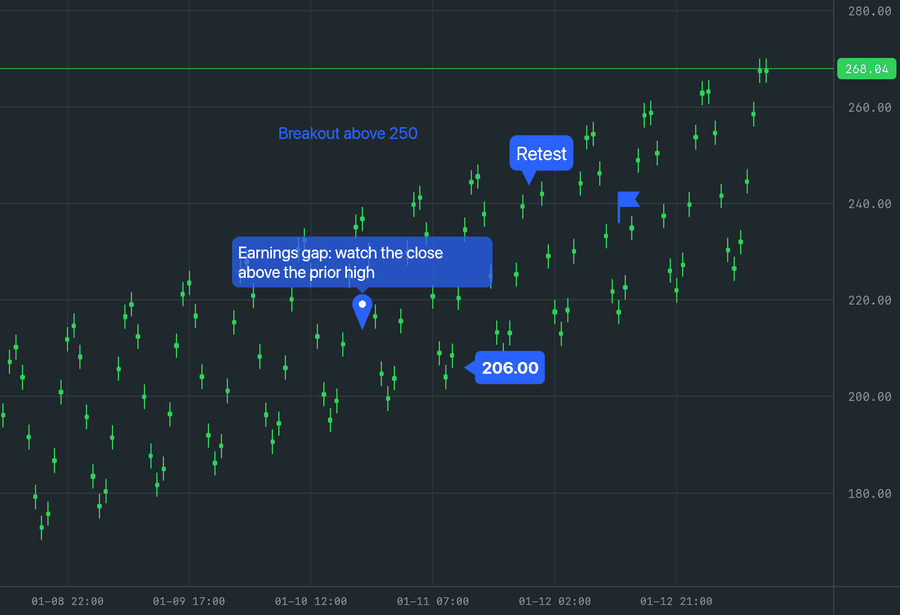
Pins
A Pin marks a spot on the chart. Click it to open its note, and press Esc or click elsewhere to close it. Which pins are open is not saved.
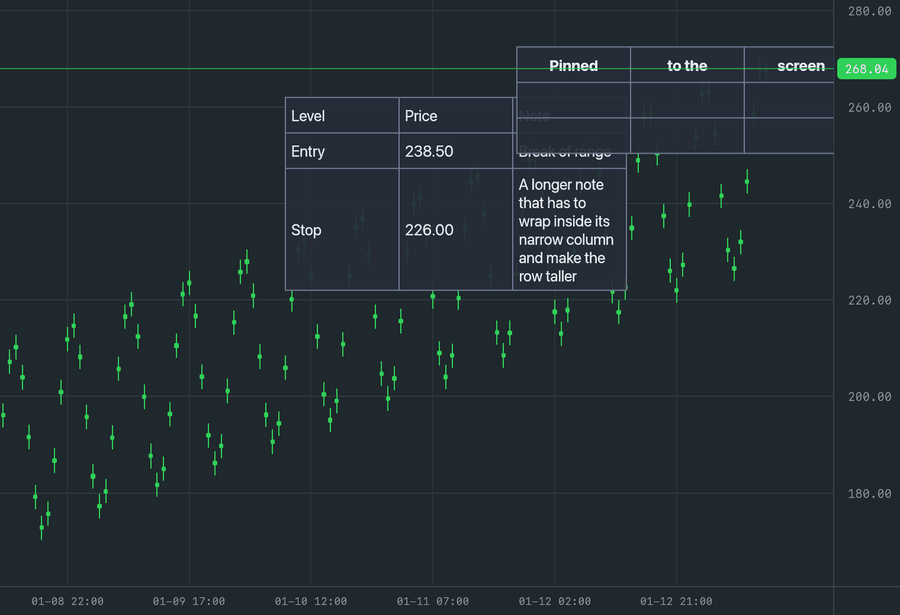
Tables
A Table holds up to 30 rows and 12 columns, with 500 characters per cell. Click a cell to edit it. Tab, Shift+Tab and the arrow keys move between cells. Right-click for Add row, Add column, Delete row and Delete column, and Pin to screen or Pin to chart.
Images
- Pick Image. A sheet opens.
- Choose a file, use Paste from clipboard, or drop a file on the sheet.
- Place the image on the chart.
Only PNG and JPEG work. DegenView shrinks the picture and strips its metadata, so keep your original. Opacity runs from 5 to 100 %. The right-click menu has Replace image… and Reset aspect ratio.
Platform differences
⌘V does not paste an image. Use the paste button. On Windows there is no file picker, so use the drop zone. The clipboard button is macOS only.
Posts
A Post is a link card for an X (Twitter) post. It accepts x.com and twitter.com status links only. The first preview asks for your one-time consent, and then contacts X's servers only. The right-click menu has Open link, Copy link, Replace link… and Fetch preview…. The card is anchored to the candle of the post's time.
Brushes, arrows and shapes
| Section | Tools |
|---|---|
| Brushes | Brush, Highlighter |
| Arrows | Arrow marker, Arrow, Arrow mark up, Arrow mark down |
| Shapes | Rectangle, Rotated rectangle, Path, Circle, Ellipse, Polyline, Triangle, Arc, Curve, Double curve |
Brushes are drawn by pressing, dragging and releasing. Path and Polyline take a click per vertex. Hold Shift to keep a Rectangle or Ellipse square. Shapes can carry text, and the magnet does not affect brush strokes.
Not available
TradingView's "Idea" tool is not built.