MCP server setup
DegenView can run a small server on your computer so an AI assistant, such as Claude, can look at your charts and, if you allow it, act on them. The standard it speaks is called MCP. You stay in control: the server is off until you turn it on, and each assistant gets its own credential with limited permissions.
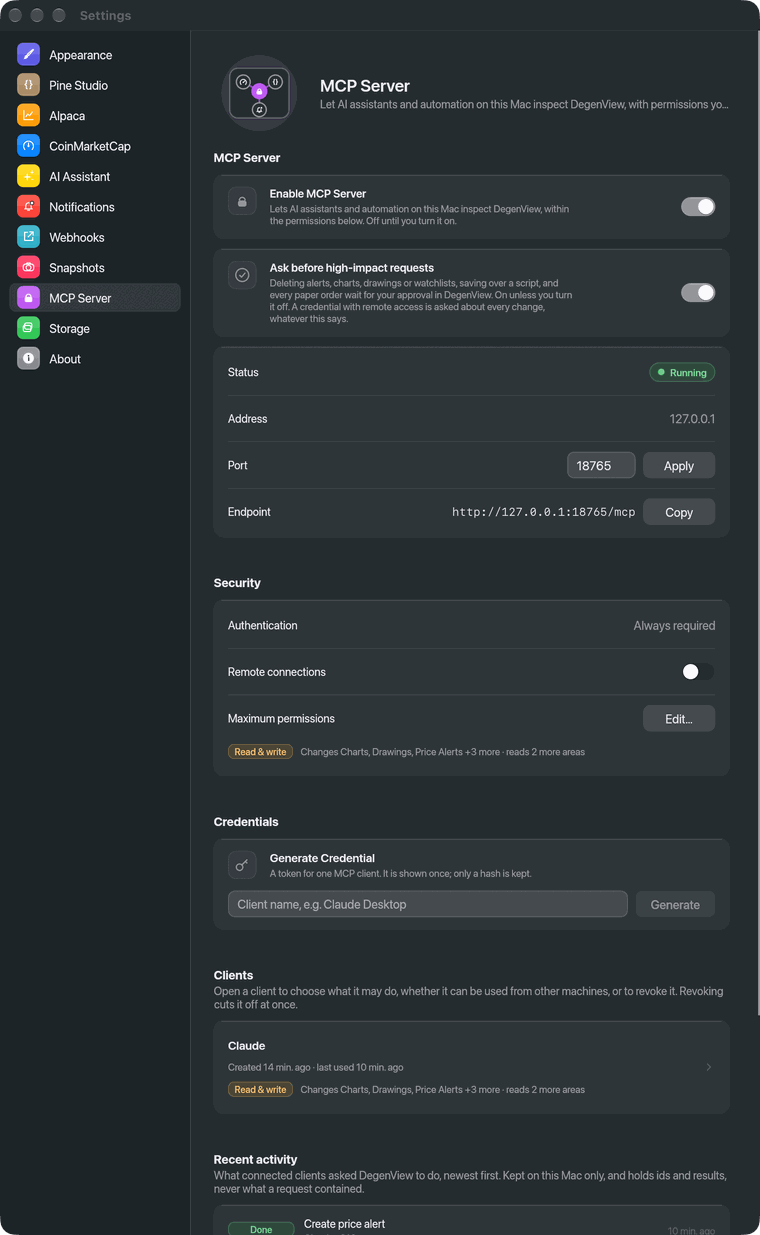
How to turn it on and connect an assistant
- Open Settings ▸ MCP Server.
- Turn on Enable MCP Server. Status changes to Running.
- Copy the Endpoint. By default it is
http://127.0.0.1:8765/mcp. That address only works on your own computer. To change the port, edit Port (1024 or higher) and click Apply. - Under Credentials, type a client name, for example "Claude Desktop", and click Generate.
- Click Copy Connection Details and paste the result into your assistant's MCP settings. Copy Credential copies the token alone.
The token is shown once. DegenView keeps only a hash of it, so write it down or paste it now. You can generate up to 16 credentials, one per assistant.
What to put in the assistant
Most assistants take an entry like this one. The name and exact fields vary by app, so follow its own instructions for adding a remote MCP server with a header.
{
  "mcpServers": {
    "degenview": {
      "type": "http",
      "url": "http://127.0.0.1:8765/mcp",
      "headers": {
        "Authorization": "Bearer <YOUR_TOKEN>"
      }
    }
  }
}
Some apps only start servers from a command, not from a web address. For those, a bridge such as mcp-remote is needed. DegenView was tested with Claude Code and that bridge, but not with the Claude Desktop app itself.
What the assistant can do at first
A fresh setup allows reading chart data only. To let an assistant do more, raise Maximum permissions first, then open the assistant under Clients and switch on what it needs. See Permissions, approvals and activity.
Security basics
- The server listens on your own computer only, unless you switch on remote connections.
- Every request needs a valid credential. Failed sign-ins are rate-limited.
- Revoke a credential any time from its entry under Clients. It stops working at once.
- Treat the token like a password. Anyone who has it can do what its permissions allow.
- On Windows, and on Linux without a Secret Service, DegenView warns that saved credentials cannot be protected against edits to its database.
Newer builds
The approval step, activity log and remote connections are newer than the last release candidate. Remote connections are unverified from other machines.