Watchlists
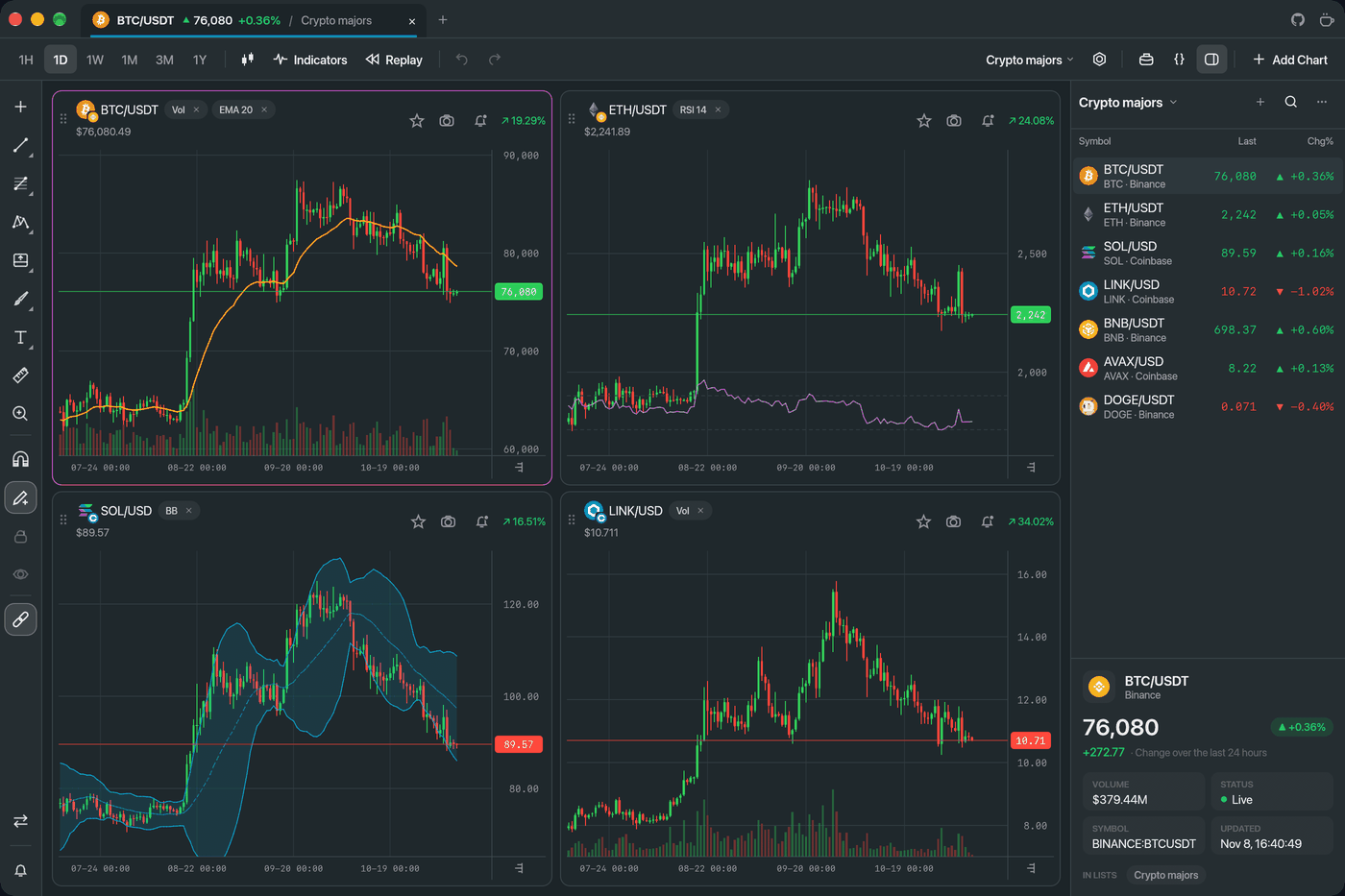
A watchlist is a list of markets you follow, with live prices beside each one. The watchlist sidebar sits at the right of a chart tab, and one click on a row opens that market.
Show the sidebar and pick a list
Click the sidebar button in the toolbar (Show Watchlists or Hide Watchlists). Whether it is open is remembered per tab. The title at the top of the sidebar is a dropdown of your lists. Its menu has Create New Watchlist…, Rename Watchlist…, Make a Copy… and Delete Watchlist….
Favorites is built in. You can rename it, but not delete it. You can have up to 200 lists with up to 5,000 rows each.
Add markets
- Click + (Add Symbol) in the sidebar header. The sheet is titled Add to and the list name.
- Search, select a result and click Add. See Adding charts.
Other ways: click the star in a chart header to add it to Favorites, or right-click the star to tick any list under Add to Watchlist.
Work with rows
Click a row to open it. Drag rows to reorder them. Delete or Backspace removes the selected row. Right-click a row, or click its … button, for:
- Open in Focused Chart, Add as New Chart, Open in New Tab
- Move to Section, Set Flag and Clear Flag
- Create Price Alert… (not offered for prediction markets or CoinMarketCap)
- Copy Symbol, Copy Qualified Symbol, Remove from Watchlist
Flags (red, orange, yellow, green, blue, purple) belong to the market, not the list, so a flag shows in every list that holds it.
List options
The … button in the header opens Watchlist options.
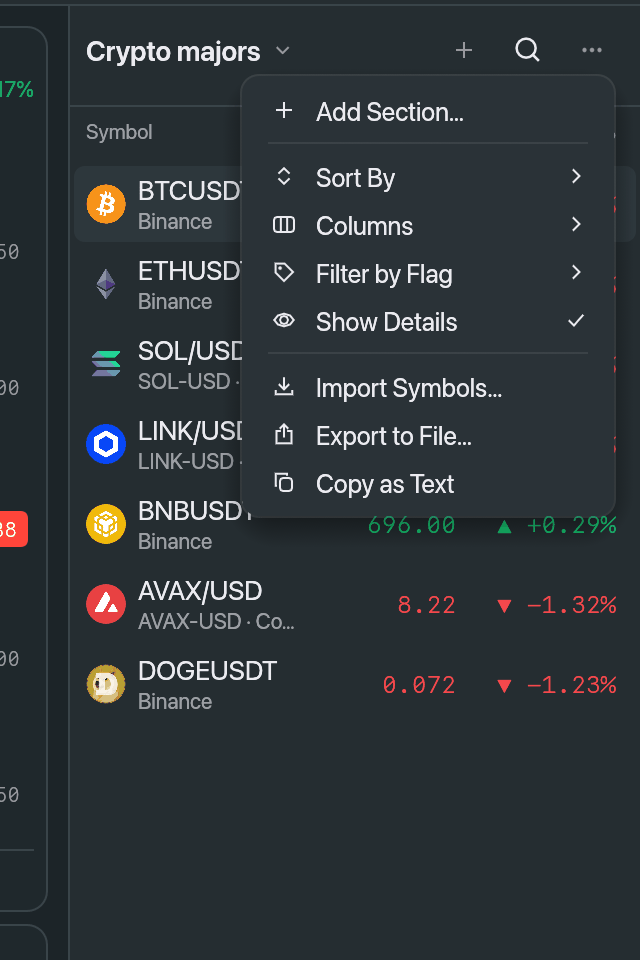
| Item | What it does |
|---|---|
| Add Section… | Groups rows under a heading you can collapse. |
| Sort By | Manual, Symbol, Last, Change, Change %, Volume, and Descending. Column headings sort too. |
| Columns | Last, Change, Change percent, Volume, Exchange, Market status. |
| Filter by Flag | Shows only one flag colour. Show All clears it. |
| Show Details | A panel under the list with price, volume, status, last update and the lists that hold the selected row. |
| Import Symbols…, Export to File…, Copy as Text | Move a list in or out. |
The magnifier button filters the list by name (Filter symbols).
Import format
Use one market per line as SOURCE:SYMBOL, for example BINANCE:BTCUSDT or COINBASE:ETH-USD. A line starting with ### becomes a section. Sources are BINANCE, COINBASE, OKX, KRAKEN, BYBIT, GATEIO, MEXC, COINGECKO, DEXSCREENER, ALPACA, POLYMARKET, KALSHI and CMC. A comma-separated TradingView-style line also works. Unsupported markets are skipped and reported.
Prices
Prices load only for rows you can see, so a closed sidebar or hidden tab does no work. A row that cannot refresh is marked stale instead of showing zero. Stock quotes need your Alpaca keys. CoinMarketCap rows have no quotes.
Windows
Open File… in the import sheet and Export to File… need a file dialog, which Windows builds do not have yet. You can still paste symbols into the import box, and Copy as Text works. See Platforms.