Layouts
A layout is a named, saved arrangement of charts. Save one for a setup you come back to, such as "Crypto majors", and reopen it in any tab.
How to save a layout
- Click the layout button in the toolbar. It shows the layout name, or Unnamed on a tab that has none.
- Choose Save layout, or press ⌘S (Ctrl+S on Windows and Linux).
- Type a name and click Save.
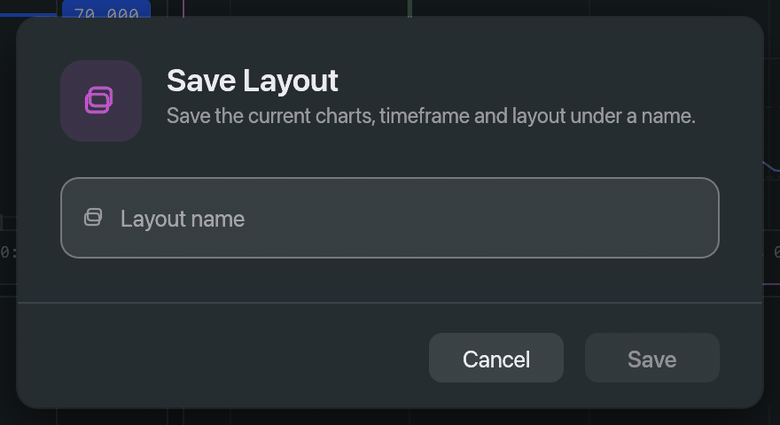
The name also becomes the tab's layout name. Once a layout is saved, ⌘S saves it again without asking.
The layout menu
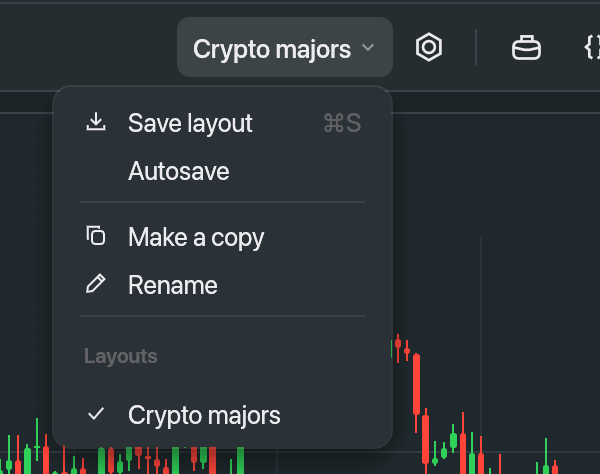
- Save layout saves the current state.
- Autosave writes your changes to the layout shortly after you make them (about two seconds). It is off until the layout has a name. If a write fails, the menu says so, and you choose Save layout instead.
- Make a copy saves what you see now as a new layout.
- Rename changes the layout's name. Both are available once the tab has a saved layout.
- Layouts lists every saved layout. Click one to open it. The trash button on a row deletes it.
If you open another layout while this one has unsaved changes, a sheet asks Save changes to “name”? You can choose Save, Cancel or Don’t Save.
What a layout stores
A layout keeps the timeframe, and for each chart the market, appearance, indicators, scripts, drawings and price scale mode. It also keeps the column arrangement and the chart-linking switches.
The toolbar shows (unsaved) after the name when you change the timeframe, the charts on the tab, a chart's appearance or scale mode, the columns, or linking. Panning, zooming, drawings, replay and watchlist edits do not set it. (unsaved) does not show while Autosave is on, and an Autosave layout still saves drawing changes.
The empty tab page
A new tab shows Start a new chart: a search box and sections for Suggestions, Favorites, Recent and Saved Layouts. Click a card to add that market, or a saved layout to open it. Favorites and Recent show at most eight cards each.
Arrange charts in columns
Charts sit in columns, two by default. Each new chart goes to the shorter column.
- Drag a chart by the grip at the top left of its header.
- Drop it between charts to reorder, or into another column to move it.
- Drop it on the strip at the right edge to start a new column. The strip appears after a moment.
Columns have a minimum width, so a new column needs room. See also Linked charts and Chart settings and templates.