Writing scripts
Pine Studio has a script list, a code editor and a preview chart that re-runs your script as you type. A drawer under the preview shows the script's inputs, report, problems and logs.
Every script needs a //@version=6 line, normally the first. See What Pine supports.
Create and manage scripts
- Click New Script at the bottom of the list (⌘N, or Ctrl+N on Windows and Linux).
- Type a name. It cannot be empty, start with a period, contain
/,\or:, or match another script. - Write code in the editor, then press ⌘S (Ctrl+S on Windows and Linux) or click Save.
The list groups scripts as Favorites, Indicators, Strategies and Libraries. Type in Search name or source to filter by name or code. Right-click a script for Favorite, Rename, Duplicate, Show in Finder, Export…, Add to Chart, Create Alert and Delete. Delete asks first, then moves the file to the Trash (on Windows and Linux, a Trash folder inside DegenView's data folder). Export… works on macOS only. Add to Chart and Create Alert are not offered for libraries.
The editor
The editor shows a status line under the code: whether the script compiles, how many lines changed since the last save (+N −N), and Save. Click a coloured mark in the gutter to see, compare or restore a change. If you close the tab with unsaved edits, DegenView asks first.
| Action | macOS | Windows and Linux |
|---|---|---|
| Find, next, previous | ⌘F, ⌘G, ⇧⌘G | Ctrl+F, F3, Shift+F3 |
| Comment or uncomment | ⌘/ | Ctrl+/ |
| Move line | ⌥↑ / ⌥↓ | Alt+↑ / Alt+↓ |
| Duplicate line | ⌥⇧↑ / ⌥⇧↓ | Shift+Alt+↑ / ↓ |
| Completion list | ⌃Space or ⌥Esc | Ctrl+Space |
| Go to definition | ⌃⌘J or F12 | F12 |
| Rename a name everywhere | ⌃⌘E or F2 | F2 |
| Select next occurrence | ⌘D | Ctrl+D |
| Select all occurrences | ⌥F3 | Alt+F3 |
| Add cursor above / below | ⌃⇧↑ / ⌃⇧↓ | Ctrl+Alt+↑ / ↓ |
Click a name with ⌘ (Ctrl) held to jump to where it is declared. Option-click (Alt-click) adds a cursor. Find has no replace. Show or hide the script list with ⌃⌘S (Ctrl+B), and the preview chart with ⌥⌘P (Ctrl+Shift+P). The Left of Code, Above Code and Below Code menu moves the preview.
Newer builds
The editor shows a colour swatch next to fixed colours such as color.red or #FF8800. Click it to open a picker that rewrites the code.
The preview chart
The preview starts on Binance BTCUSDT, 1D. Use the market picker to choose another crypto or stock market; stocks need Alpaca keys (see Data sources). The preview refreshes every few seconds and never sends alerts.
The drawer
| Tab | What it shows |
|---|---|
| Inputs | A control for each input.* in your script. Changes re-run it at once. Values are saved per script. |
| Report | For strategies: figures, equity curve, trade list and a Monte Carlo simulation of how far the result could move. Also alerts. See Strategy reports. |
| Problems | Errors and warnings. Click one to jump to its line. |
| Logs | Output of log.info(), log.warning() and log.error(), with search and filters. |
| Profile | Where the script spends its time. See Debugger and profiler. |
Use the arrow at the right of the tabs to hide the drawer.
If a file changes outside DegenView
You can edit .pine files in another editor. DegenView picks up changes within a couple of seconds. If you have unsaved edits too, a banner offers Reload from disk or Keep my version. A coding agent can do the same: see Vibe-code with your own agent.
Editor appearance
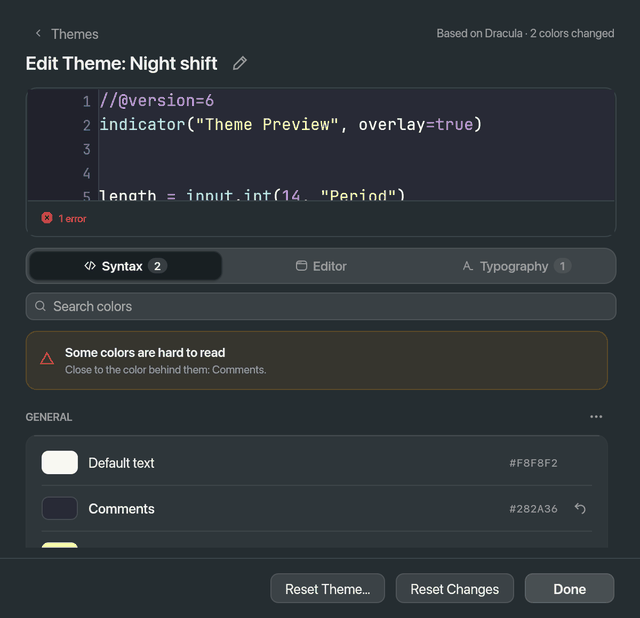
Choose a theme and font in Settings ▸ Pine Studio: Automatic, Dark, Light, Dracula or your own. See Settings.
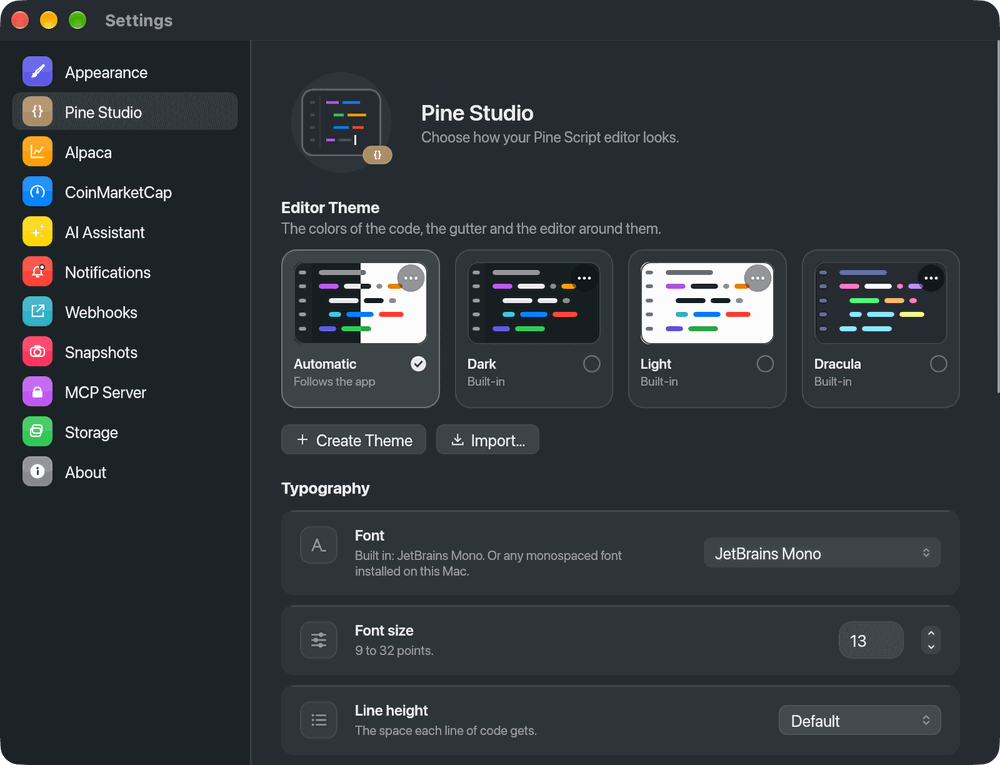
The theme editor lets you change every syntax colour and the editor surfaces.