Updates
DegenView checks for new versions by itself and can install them for you. You stay in control: it never restarts without you clicking.
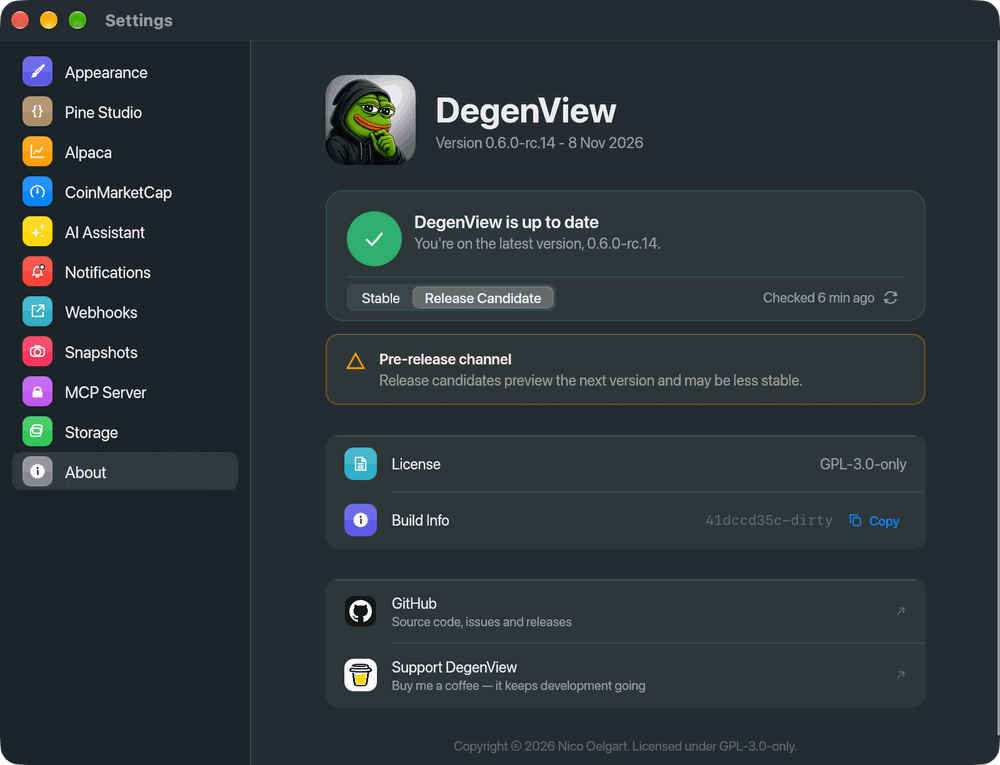
When it checks
DegenView looks for a new version shortly after it starts, then every six hours. If a check fails, it tries again after 30 minutes. To check now, open Settings ▸ About and click the refresh button next to Checked … ago.
Choose a channel
On Settings ▸ About, pick Stable or Release Candidate.
- Stable offers finished releases only.
- Release Candidate also offers previews of the next version. They may be less stable, and DegenView shows a Pre-release channel warning.
A build starts on its own channel, so a release candidate keeps receiving release candidates until you switch. Switching channel never installs an older version.
What the update card says
| Message | What to do |
|---|---|
| Checking for updates… | Wait. |
| DegenView is up to date | Nothing. |
| DegenView X is available | Click Update Now, or View Release if it cannot install itself. |
| Updating DegenView… | Wait while it downloads and checks the file. |
| DegenView X is ready | Click Restart to Update. |
| Couldn't update to… or Couldn't check for updates | Click Try Again. |
A Release Notes link opens the release page. The same progress shows in the tab strip as Update, Updating with a percentage, Restart, or Update failed. When an update can install itself, clicking Update starts it.
When it cannot update itself
The button reads View Release and you download the new version by hand when:
- the app sits in a folder you cannot write to, such as
/usr/bin, or was installed by a package manager; - on macOS, you run it straight from the disk image. Drag it to Applications first;
- you use the Flatpak, which cannot replace itself. Run
flatpak updateif you installed from the DegenView repository (see Installation), or download the new.flatpakfile if you installed one by hand; - it is a development build.
By system
- macOS: keep DegenView in Applications. Updates are checked against the developer's signature and Apple's notarization. This also holds when you installed with Homebrew: it puts the app in Applications, and
brew upgradeskips it. - Windows and Linux: these builds are not signed by a developer certificate. Self-update replaces the app's own file, so it must sit in a folder you own. It has been tested in automated tests but not yet taken in a real session. On Linux only the program is updated, not the icon or menu entry.
Before installing, DegenView checks that the release is signed and that the file matches its published checksum. If you have unsaved Pine edits when you quit to update, it asks first. See also Platforms.