Changing a chart's symbol
Newer builds
The symbol button and the symbol picker arrive after 0.6.0-rc.17.
The symbol button at the top left of the toolbar shows the market of the chart you are working on, named the way its exchange names it: BTCUSDT on Binance, BTC-USD on Coinbase, AAPL for a stock. Click it to swap that chart to another market without adding a new one.

Change the symbol
- Click a chart to focus it, then click the symbol button, or press ⌘K (Windows and Linux: Ctrl+K).
- The search opens already looking for the market the chart shows, with the text selected. Type to replace it, or pick one of the rows right away.
- Press Return or click a row. The focused chart now shows that market. Its settings, indicators, drawings and place in the tab stay, and the candles reload.
With no chart on the tab, the same search adds one.
Finding the right market
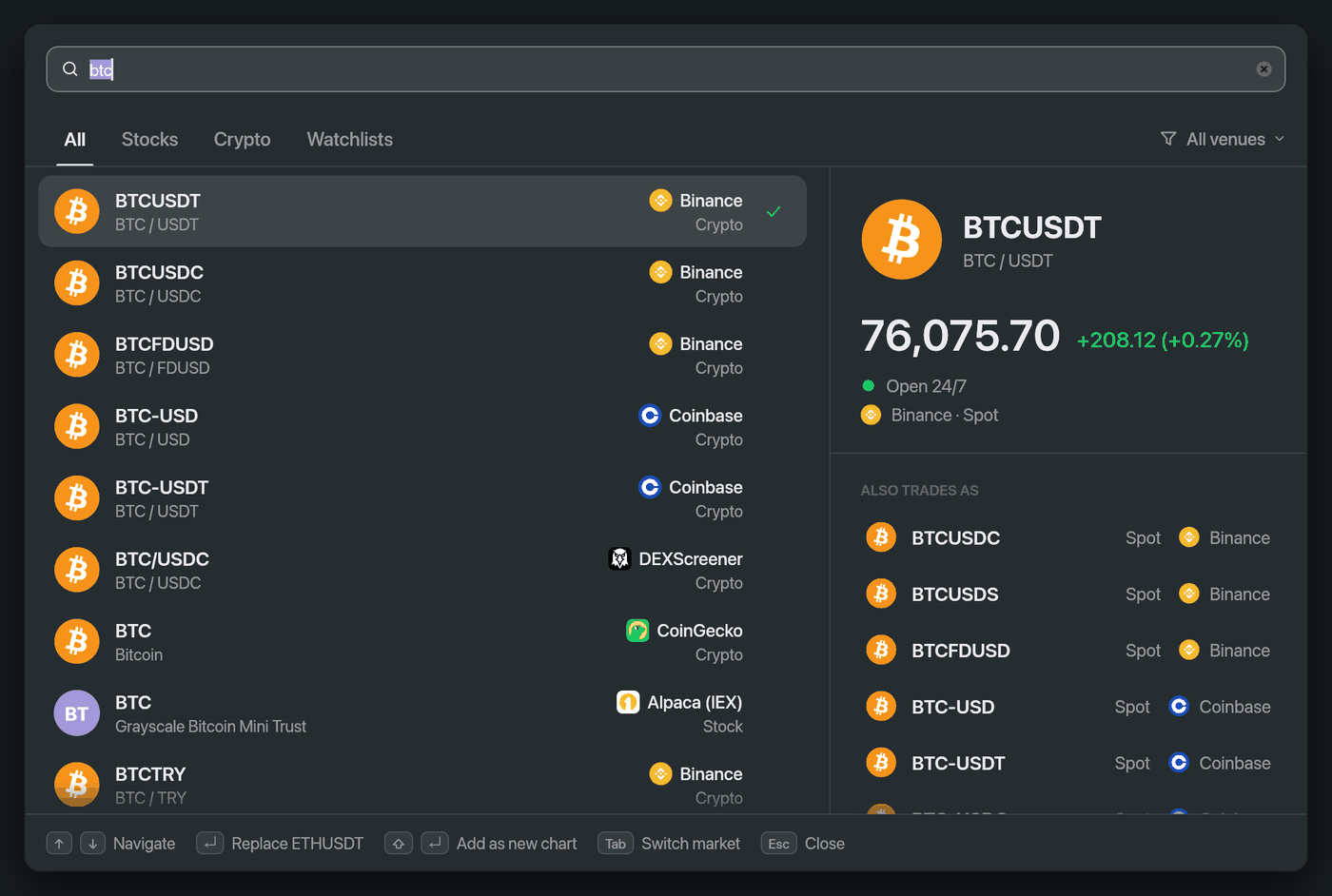
Search for an asset ("btc"), a market ("BTCUSD", "btc/usd" and "BTC-USD" all mean the same thing) or a company ("apple").
Every dollar market of the asset (USD, USDT, USDC and the other dollar coins) comes first, from every exchange that lists it, so you can pick Binance's BTCUSDT or Coinbase's BTC-USD at a glance. Markets that merely include the asset in another currency, such as BTCTRY, follow below them, and unrelated names come last.
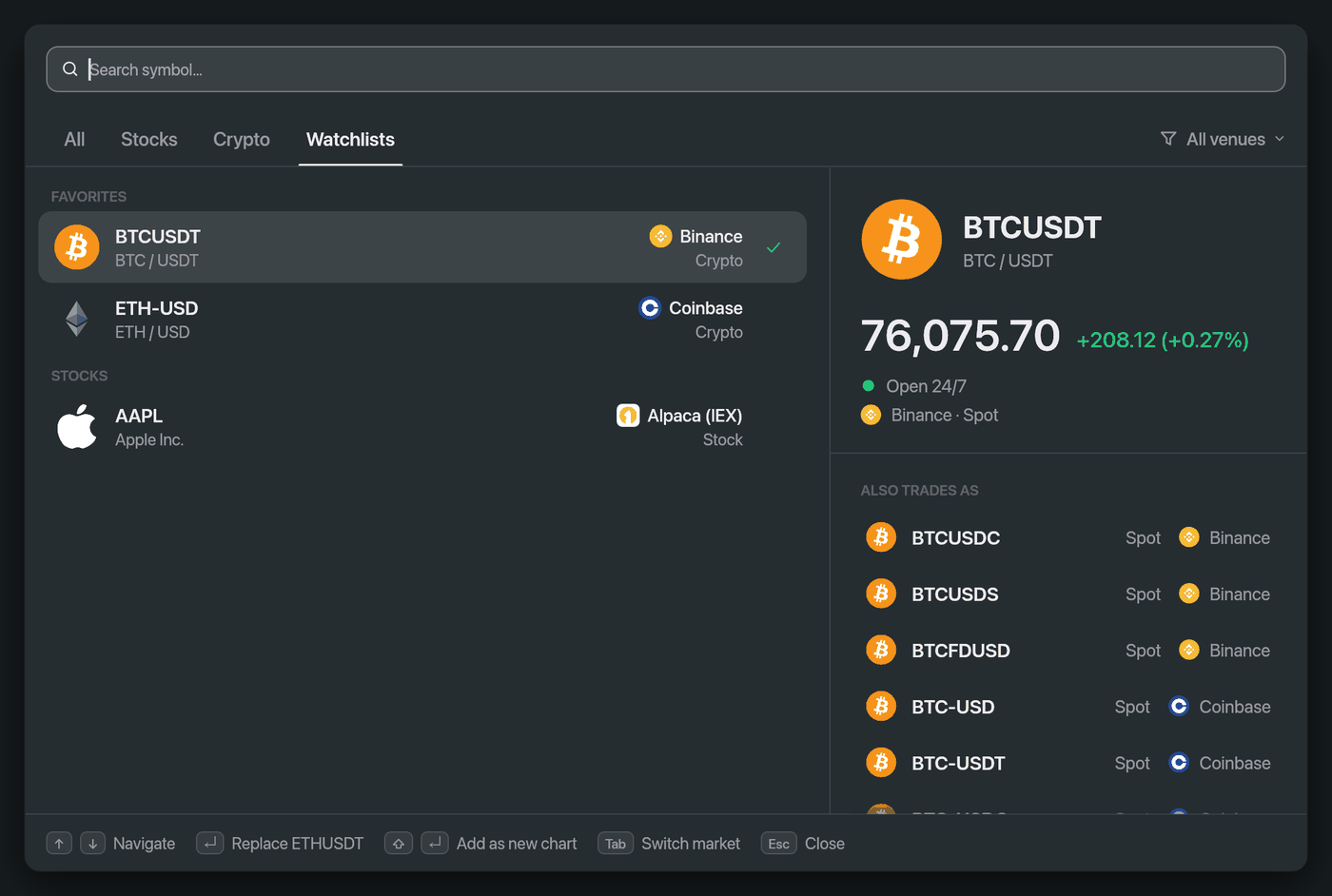
- All, Stocks, Crypto, Watchlists: the tabs narrow the results. All searches crypto and stocks together. Watchlists lists the crypto and stock markets of your watchlists, grouped by list; type to filter them. Press Tab to move between the tabs.
- All venues: choose one exchange to see only its markets.
- A check marks a market that is already on a chart in this tab. A + on the highlighted row adds the market as a new chart instead of replacing the current one.
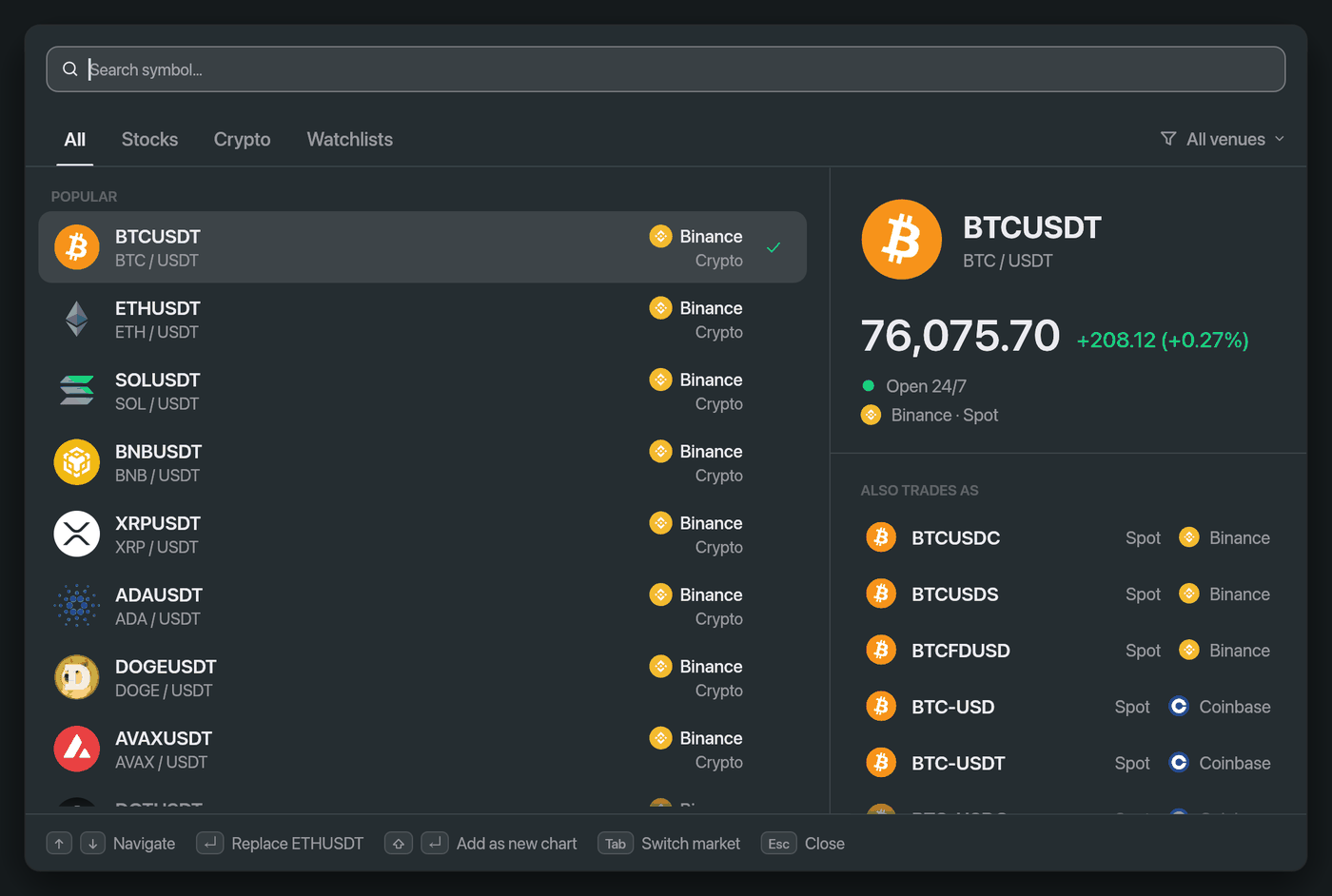
- With nothing typed, the list shows markets you picked recently, or a few popular ones if you have none yet.
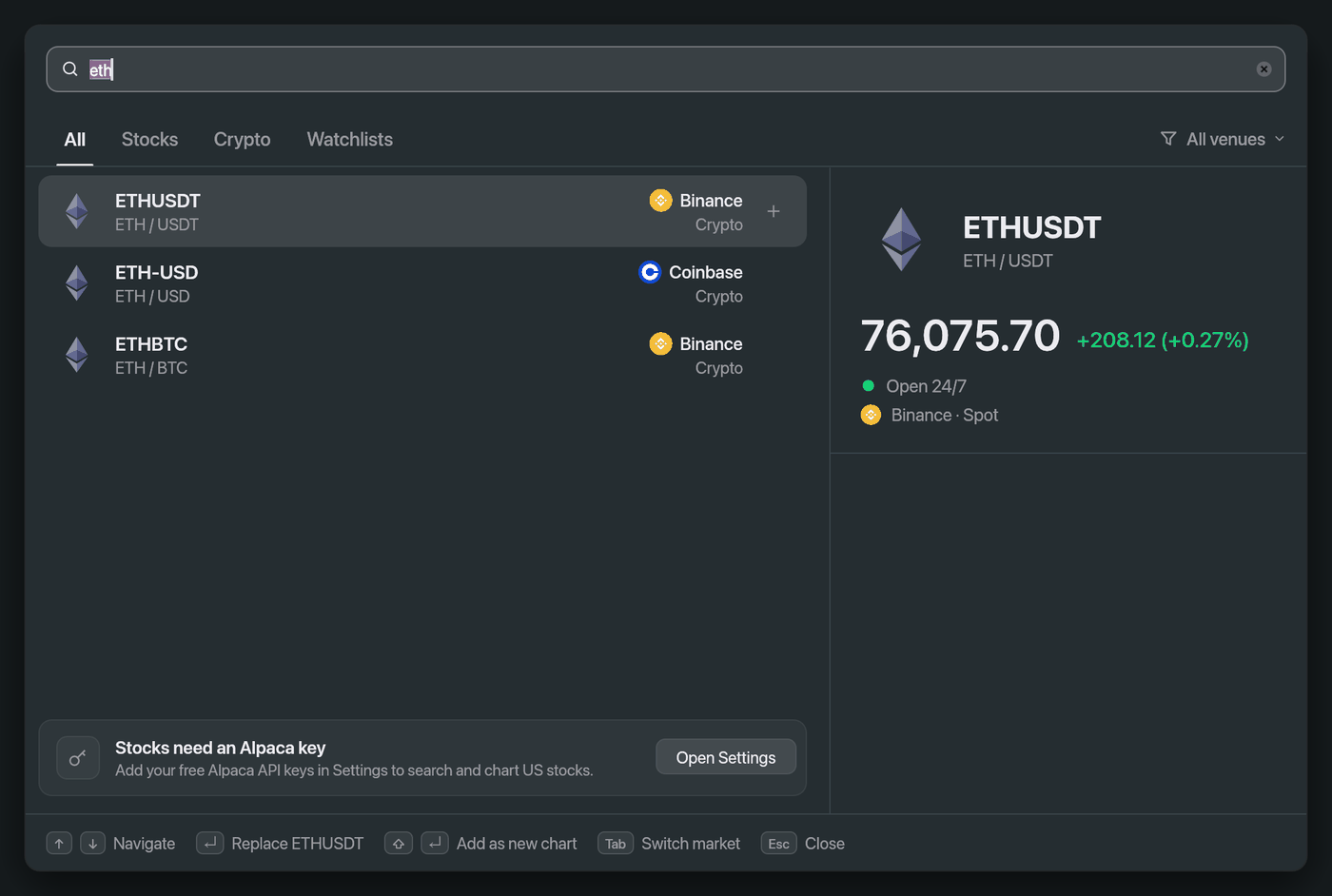
Stocks need your free Alpaca keys. Until they are set, a card at the bottom of the list says so and offers Open Settings. See Data sources.
The detail panel
The panel on the right (it hides in a narrow window) shows the highlighted market's last price and change, whether it is trading, and where it is listed. Also trades as lists the same asset's dollar markets on other exchanges. Click one to switch the chart straight to it.
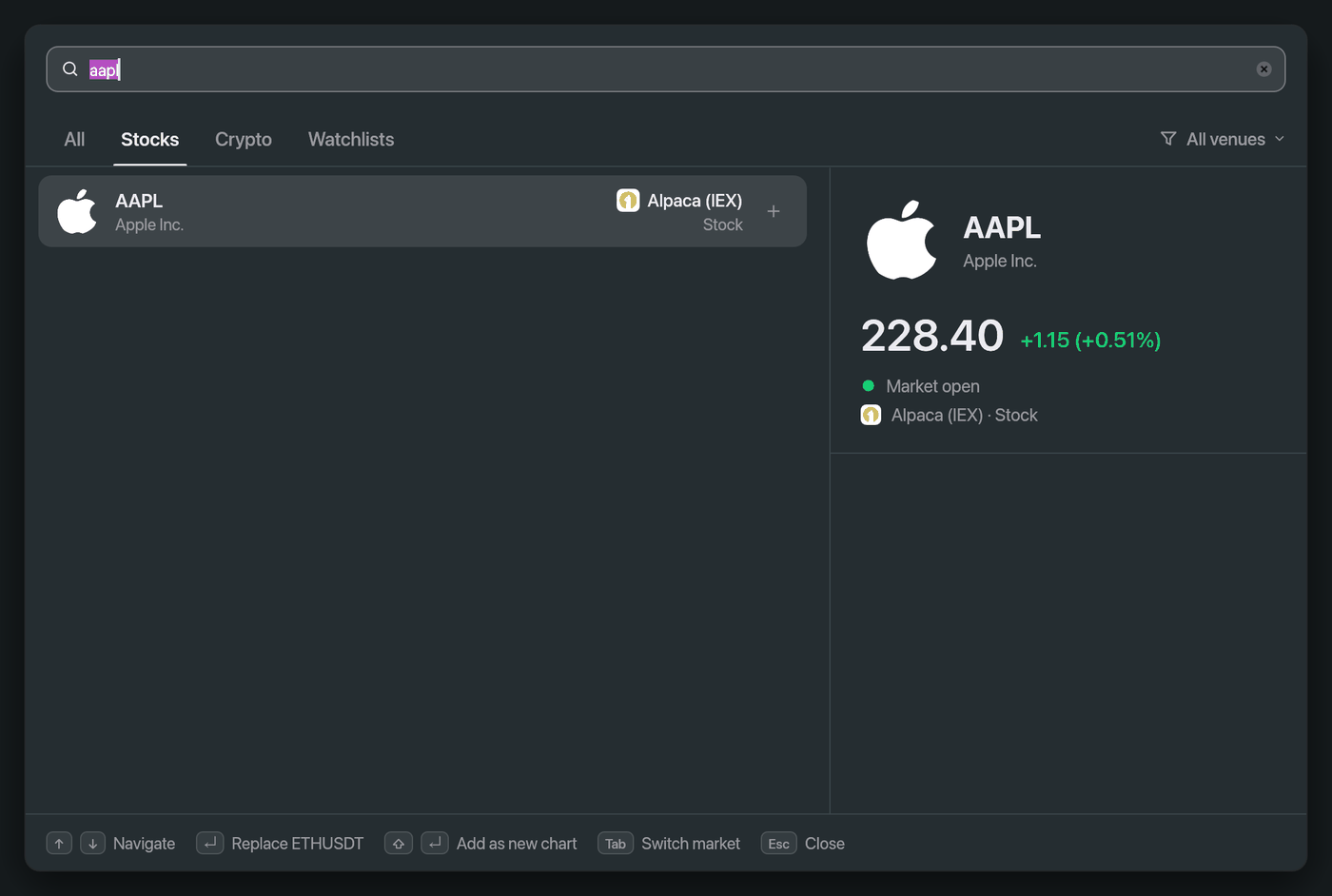
The Watchlists tab shows your own lists:
Keys
| Key | Does |
|---|---|
| ↑ ↓ | Move through the results |
| Return | Replace the chart's market with the highlighted one |
| ⇧Return | Add the highlighted market as a new chart |
| ⌥Return (Alt+Enter) | Draw the highlighted market over the chart as a comparison and close |
| Tab | Switch between All, Stocks, Crypto and Watchlists |
| Esc, or a click outside the sheet | Close |
Names changed
Charts and search results used to show pairs with a slash (BTC/USDT). They now show the exchange's own name (BTCUSDT). Saved charts and alerts keep working; a watchlist row keeps the name it was saved with until you re-add it.
To add prediction markets, CoinMarketCap charts or portfolio cards, use Add Chart.