Paper trading
Paper trading lets you practise with simulated money on the same charts you already use. Nothing you do here touches a real exchange or a real broker.
Open the panel and set up an account
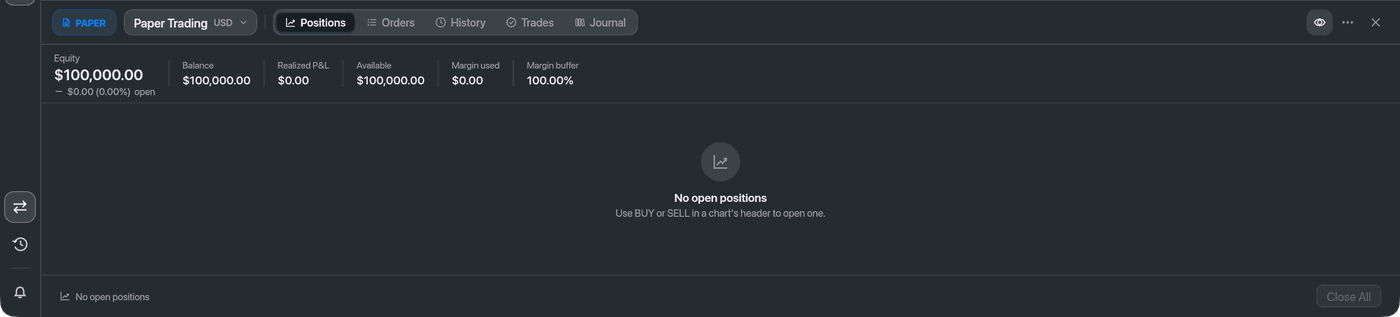
Click the Paper Trading tile in the tool sidebar to show the panel. A PAPER marker is always visible so you never mix it up with real money.
The first time you open it, DegenView creates an account called Paper Trading with a starting balance of 100,000 USD. Create more from the panel's account menu with New Account…. The account sheet has:
| Setting | Options |
|---|---|
| Account name | Any name |
| Starting balance | Any amount above zero |
| Currency | USD, EUR, GBP, JPY, USDT or USDC |
| Leverage | From 1× (no borrowing) to 1000×, the same for every market |
| Commission | None, Fixed, Percent or Per contract |
The account menu also has Export Trading Data…, Reset Account… (a fresh balance, with everything else removed) and, when you have more than one account, Delete Account….
Place an order
Orders work on any market chart except CoinMarketCap indices. Nothing is placed until you confirm in the ticket.
- Click SELL or BUY in the chart header (shown while the panel is open), or right-click the chart and choose Add order on SYMBOL at PRICE…. Quick entries such as Sell SYMBOL @ PRICE limit are in the same menu.
- In the ticket, choose Buy or Sell and a type: Market, Limit, Stop or Stop Limit.
- Enter the Quantity, or use the 25%, 50%, 75% and Max buttons.
- Fill in the limit and stop prices that your type needs. Optionally open Take profit & stop loss.
- Check the order value, required margin, estimated fee and available funds, then click the Buy or Sell button.
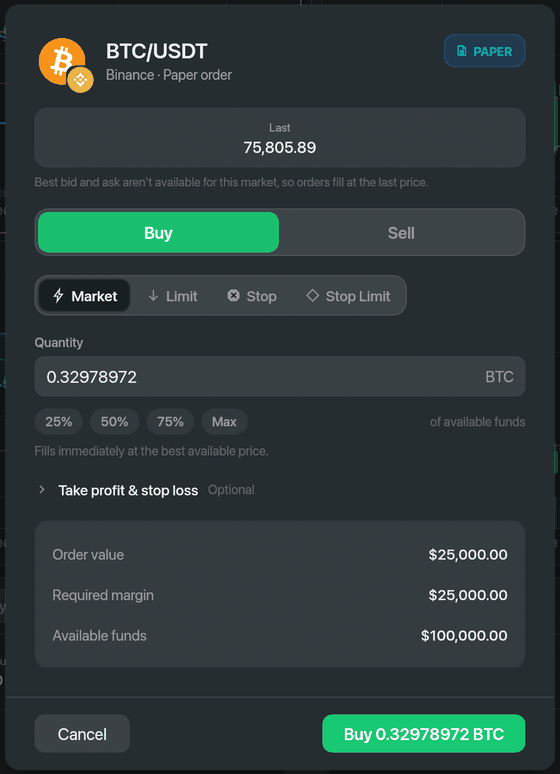
Every order stays open until it fills or you cancel it. There is no time-in-force setting. If the ticket says Order not placed, it also says why.
Trade on the chart
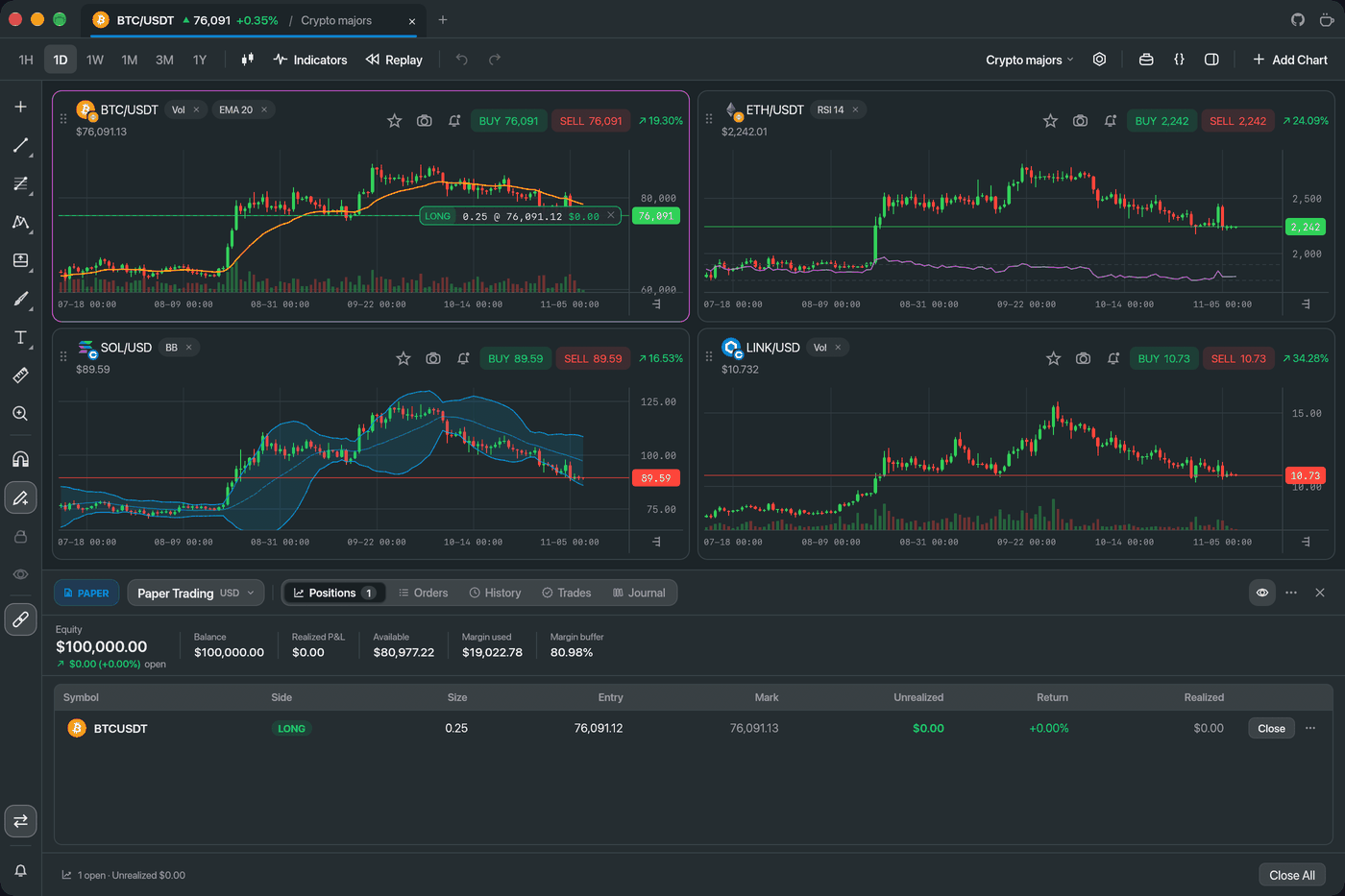
Each open position and working order has a dashed line and a pill with its profit or loss and a close or cancel button. Drag an order's pill to move its price. It snaps to the price tick. Take-profit lines are green and stop-loss lines orange-red. The eye button in the panel header hides these markers.
The panel tabs
The header shows Equity, Balance, Realized P&L, Available, Margin used and Margin buffer. The tabs are:
- Positions: Close and Reverse… on each row, and Close All.
- Orders: working orders, with Cancel All.
- History: every placed, filled and canceled order.
- Trades: closed trades.
- Journal: fills, rejections and account changes.
Export… on History, Trades and Journal saves paper-orders.csv, paper-fills.csv and paper-trades.csv into a folder you choose.
Things to know
- Orders fill at the chart's own last price, not at a bid or ask. Real fills can differ.
- Orders only fill while DegenView is open and a chart for that market is showing. They never fill while the app is quit or the Mac is asleep.
- Old prices are ignored, and US stocks do not fill outside the regular session (9:30 to 16:00 Eastern, weekdays).
- You cannot start new orders during replay.
- Export needs a file dialog, which Windows does not have yet.